How Relay works
Approvals and the audit trail
Nothing leaves without approval
Every reply, every shared report and every change in a connected tool waits on the Approvals screen. Relay never sends on its own, and there is no setting to make it.
Some internal steps run without approval because nothing leaves your PC, for example building a Power BI report in a local folder or looking something up. The reply that shares the result still waits for you.
What an approval shows
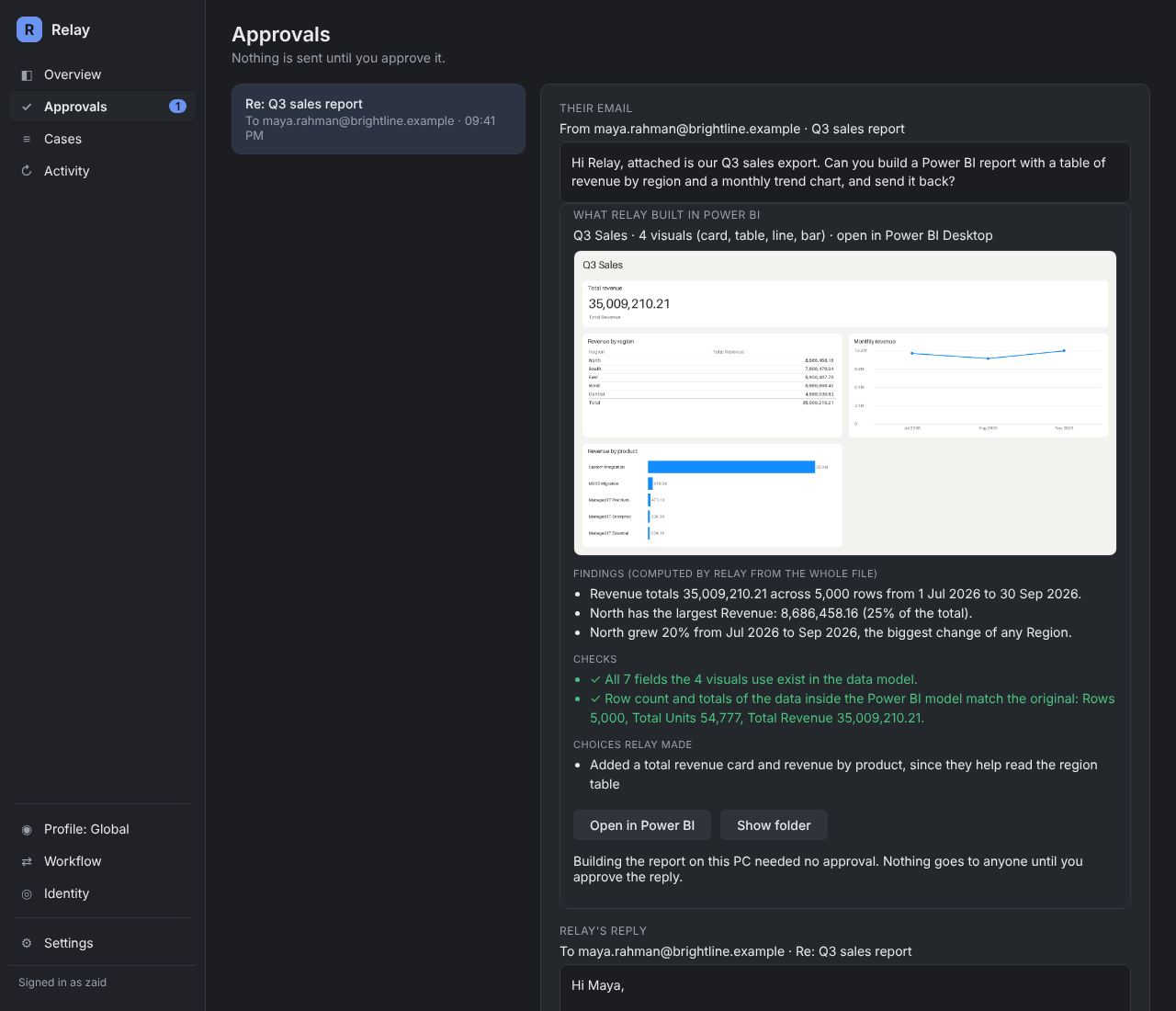
- Their email: what came in.
- What Relay did: the report it built, the look-ups it made, or the change it plans, with checks.
- Findings calculated in code, and choices Relay made that you might want to know about.
- Relay's reply: the draft, which you can edit before approving.
Press Approve reply to send, edit first, or Reject to close it without sending. Replies always go back to the sender: Relay never chooses who a reply goes to. When a reply comes with changes, such as an SAC change or a new scheduled report, they're listed on the same card and run only after you approve. If one fails, nothing is sent and the case comes back to you. If the draft changes after you approve it, it needs approving again. An approved email is sent at most once, even if the PC restarts mid-send.
When Relay asks a person
Some cases go to Needs attention instead of getting a draft:
- Relay isn't confident what the email is about.
- It looks like a complaint with legal or cancellation wording.
- It looks like someone is trying to give Relay instructions.
- A skill needs details the email doesn't have and Relay can't ask for them.
Open the case to see why, then click Draft a reply or Close.
The audit trail
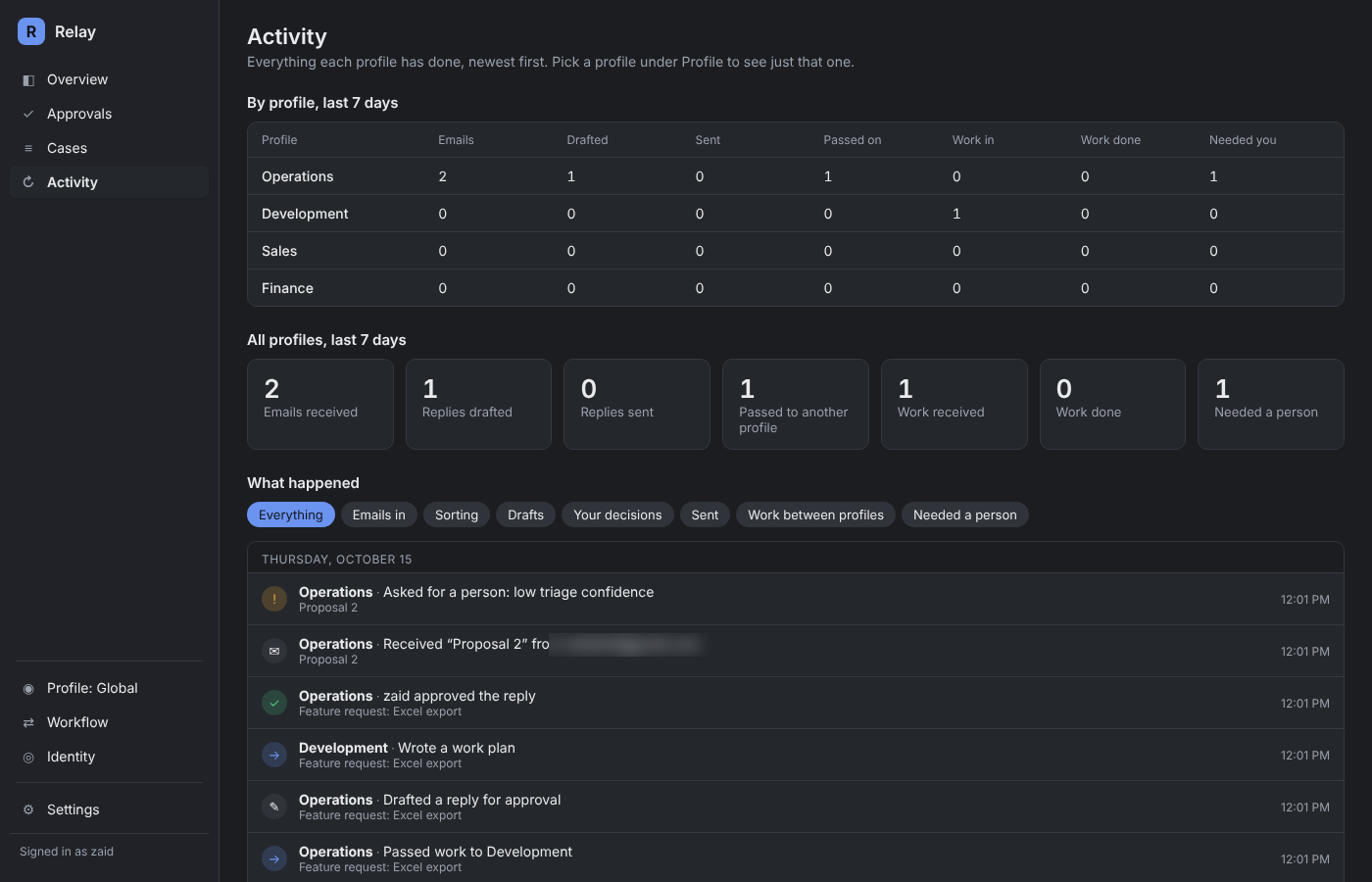
Every case keeps its full history: what came in, how it was sorted, which agent and skill handled it, what was sent to the AI (masked), what you approved and what went out. Entries are added, never edited. The Activity screen shows the same events across every agent, with totals for the last 7 days.