Connect
Connect any system with an API
A connection logs Relay in to one of your systems: accounting, CRM, ticketing, ERP, a web shop, or anything else with a web API. Skills then use it to look things up and, if you allow it, to make changes you approve. Open Connections in Relay's sidebar.
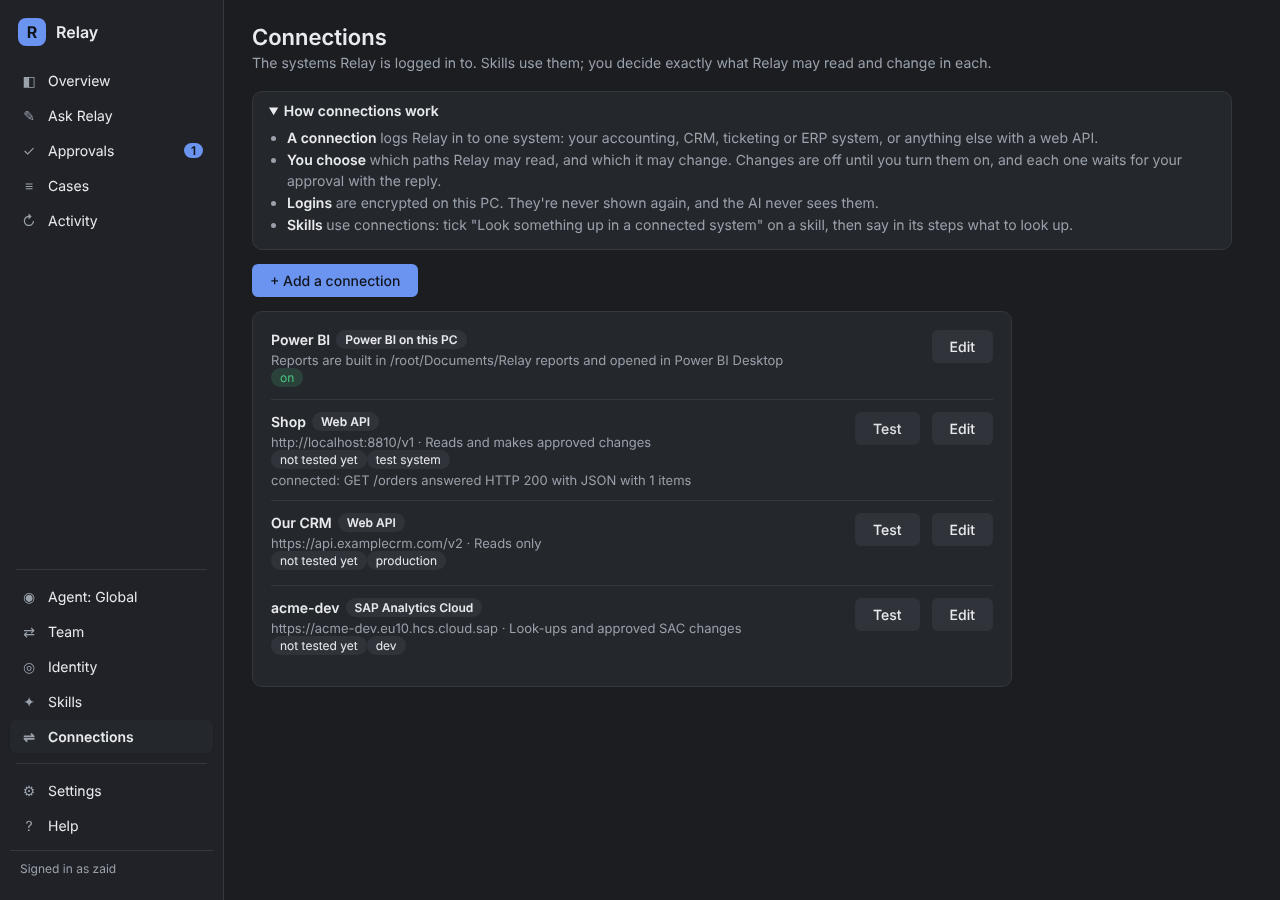
Add a connection
- Connections > + Add a connection > Any system with a web API.
- Name: what you call it, for example Our CRM. Skills and Relay's AI use this name.
- Address: the API's base address from the system's API documentation, for example
https://api.example.com/v1. - Kind of system: Test or sandbox, or Production for real data.
- Login: how the system wants Relay to sign in. Most systems give you an API key or a token in their settings, under a heading like API, Developers or Integrations. Some use a user name and password, or an OAuth client ID and secret with a token address.
- Note for Relay: what lives where, in plain words, for example Customers are under /customers, orders under /orders/{number}. Relay's AI reads this note, so never put a password in it.
- Press Save and test. The test only reads; it never changes anything.
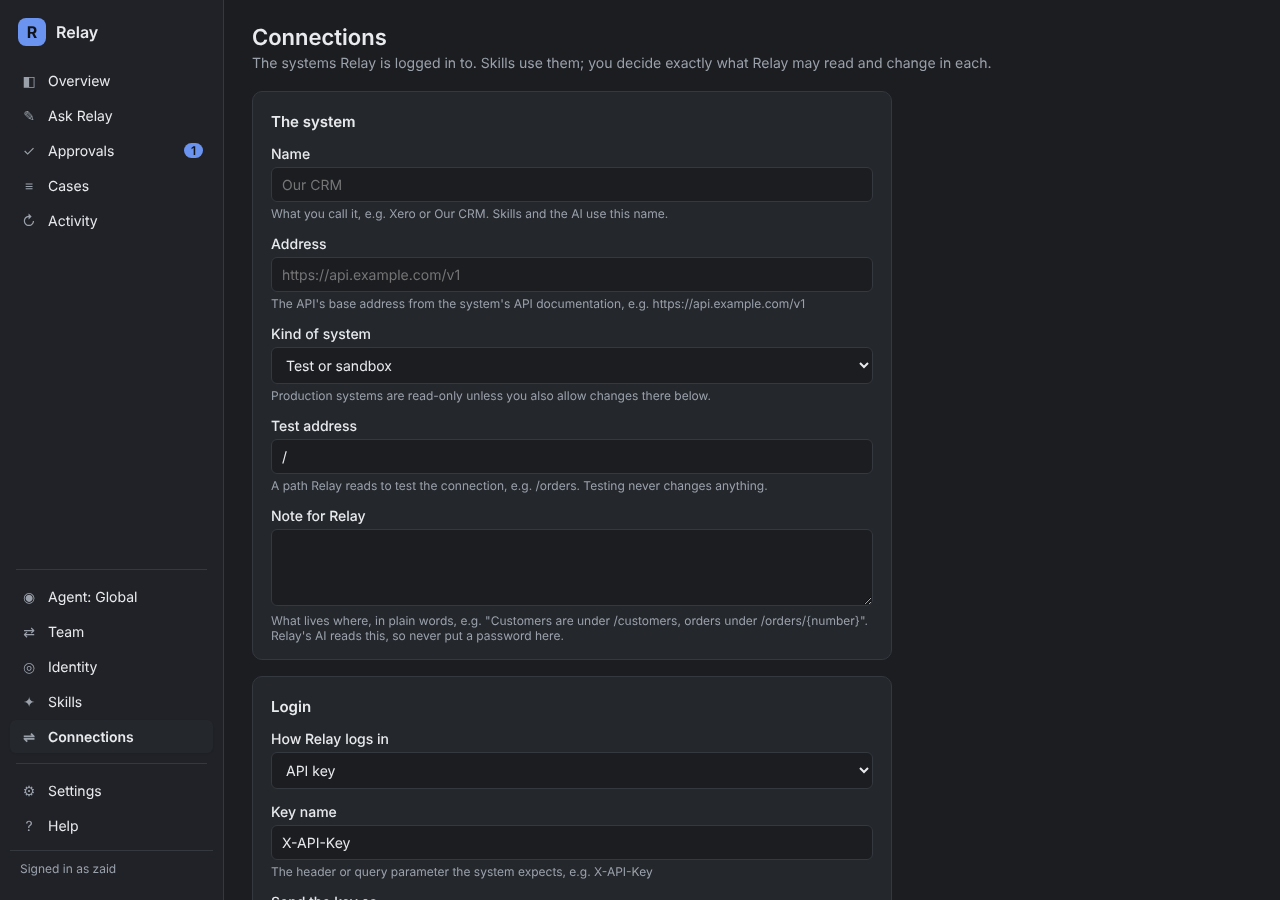
Your login is encrypted on your PC. It's never shown again and never sent to the AI. To change it, type a new one; leaving the box empty keeps the saved one.
What Relay may read and change
- Paths Relay may read: one per line.
/orders/*is one level under /orders,/orders/**is everything under it,/**is everything. Start narrow if you can. - Relay may make changes here: off until you turn it on. Then list the paths Relay may change; with none listed, nothing can change.
- Production systems stay read-only unless you also tick Also allow changes on this production system.
Whatever the lists say, Relay never:
- sends a delete;
- reads or changes users, roles, permissions, API keys or logins;
- follows a redirect to another address;
- makes a change you haven't approved.
These rules are in Relay's code; no skill or AI answer can change them. What a system sends back is treated as data, not instructions, and private details are hidden before the AI sees it.
Using a connection in a skill
Open the skill and tick Look something up in a connected system, and Change something in a connected system if it should propose changes. Under Which connections it may use, tick the ones it needs (none ticked means any). In the skill's steps, say what to look up, for example Look the order up by its number and say when it ships.
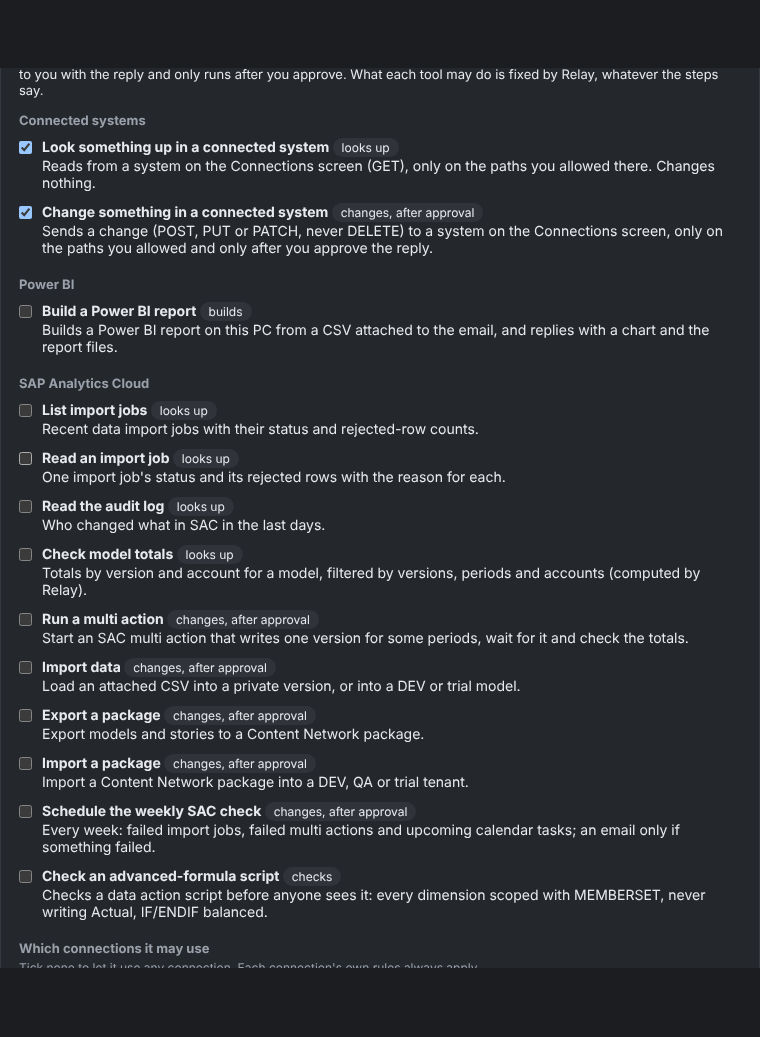
Relay looks up at most 10 things and proposes at most 3 changes per email; past that the email goes to a person.
Approving a change
The approval shows the exact change (method, path and what's sent), with what's there now, which Relay saves before the change. A change in another system can't be undone automatically. If you need to reverse one, use that saved copy to put it back yourself.
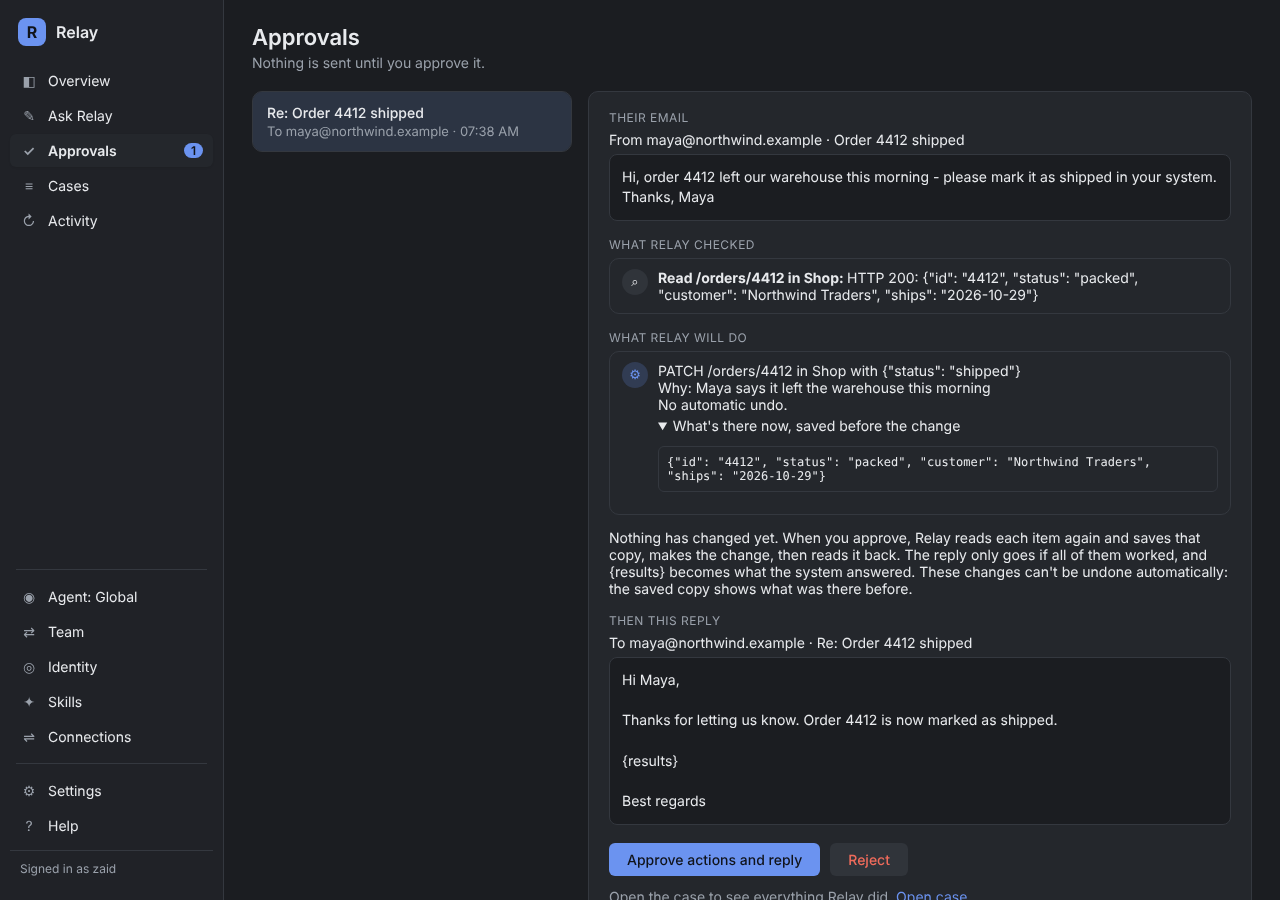
After you approve, Relay reads the item again, makes the change, reads it back, and only then sends the reply. If anything fails, nothing more runs, no reply is sent, and the email goes to a person.
Seeing what was sent
Open a connection and expand What Relay sent: every request and its answer, with logins and keys left out.
Power BI and SAP Analytics Cloud
- Power BI on this PC builds reports from CSV files attached to emails; it needs no login. See Set up Power BI reports.
- SAP Analytics Cloud is listed under Specialised, for SAC implementors. See SAP Analytics Cloud.
Connections are part of Trial, Paid and Implementation. On Free they pause; nothing is deleted.