Connect
Connect Gmail and other mailboxes
Relay reads Gmail, Google Workspace and most other mailboxes over IMAP with an app password: a separate password made just for Relay, which you can cancel at any time without changing your real one.
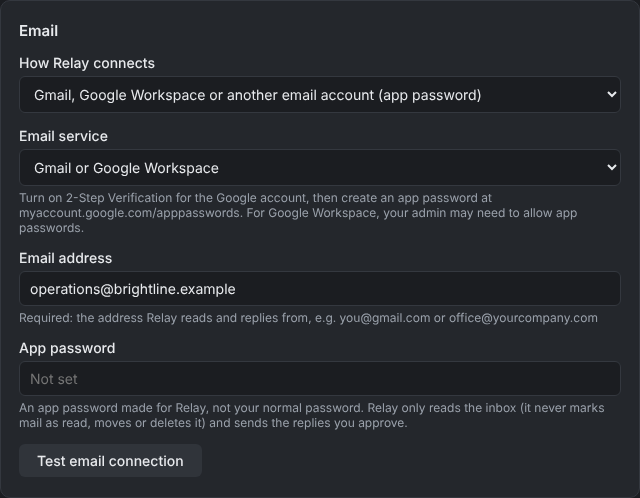
Gmail and Google Workspace
- Turn on 2-Step Verification for the Google account. App passwords need it.
- Create an app password at myaccount.google.com/apppasswords. Name it
Relayand copy the 16-letter password. - In Relay, open Settings > Email, choose Gmail, Google Workspace or another email account (app password), and pick Gmail or Google Workspace.
- Enter the email address and the app password, then click Test email connection.
Note: On Google Workspace, your administrator may need to allow app passwords and IMAP first, in the Google Admin console.
Other providers
Choose the provider under Email service and follow its steps to create an app password:
- Yahoo Mail: Account security > Generate app password. Yahoo's guide
- iCloud Mail: Apple Account > Sign-In and Security > App-Specific Passwords. Apple's guide
- Zoho Mail: Security > App Passwords. Zoho's guide
- Other: choose Other and enter the IMAP server, SMTP server and SMTP port from your provider's help pages.
How Relay uses the mailbox
- It opens the inbox read-only: it never marks mail as read, moves it or deletes it.
- Replies you approve are sent by SMTP in the same conversation, with any report image and attachments.
- Gmail saves sent replies in your Sent folder automatically. Other providers may not.
Limits
- One IMAP account per Relay. Separate mailboxes for each agent currently need Microsoft 365.
- "Sign in with Google" isn't available yet. Google requires a lengthy security review for apps that read Gmail, so app passwords are the supported route for now.