Connect
The decision engine (Jev, Kev or your AI)
Before anyone drafts a reply, Relay sorts each email: what kind it is, how urgent, whether it needs a reply, whether it looks like someone trying to trick an assistant, and which agent should take it. That's the decision engine. Choose it under Settings > AI > Decision engine:
- Automatic (the default): Jev when its key is set, otherwise your main AI. You don't need a Jev key to start.
- Jev (TypeSafe AI, cloud): a service built for typed decisions with confidence scores.
- Kev (on your computer, open source): a free model that answers the same questions as Jev, on your own hardware.
- Use my main AI: the AI you chose under Settings > AI. With a local AI, nothing leaves your PC.
Whichever you choose, nothing falls back from your PC to the cloud. If a local engine can't answer, the email goes to a person and the case says why.
Getting a Jev key
Jev is made by TypeSafe AI. These steps were checked on 26 October 2026.
- Go to typesafe.ai and choose Sign in, or go straight to console.typesafe.ai. You sign in with Google or an emailed code.
- Open API Keys in the console and create a key. Copy it straight away: it's shown only once.
- In Relay, paste it into Settings > AI > Jev (TypeSafe AI) API key.
Note: TypeSafe paused new sign-ups in late September 2026, and access has at times been by waitlist. If you can't get an account, use Automatic or Use my main AI: Relay works fully without Jev. Jev is priced per token by TypeSafe, and output tokens have been free; check typesafe.ai for current terms.
Setting up Kev
Kev is an open-source family of decision models (Apache-2.0) that work like Jev. It runs as a small server that Relay talks to.
What you need: Kev-4B, the standard model, needs an NVIDIA graphics card with 24 GB or an Apple Silicon Mac with 32 GB. The smaller Kev-0.8B runs on a 4 GB card or any Apple Silicon Mac. On Windows, Kev usually runs inside WSL with an NVIDIA card. It can also run on another computer on your network.
- Install Python 3.13 and uv.
- Download Kev:
git clone https://github.com/jaredpalmer/kev.git, thencd kevanduv sync --extra serve. - Start it:
uv run --extra serve python -m kev.serve --run jaredpalmer/kev-4b --port 8009. The first start downloads the model. For Kev-0.8B, use its name from the Kev page instead. - In Relay, open Settings > AI, set Decision engine to Kev, leave Kev address empty (or enter the other computer's address, such as
http://192.168.1.20:8009), and press Test Kev.
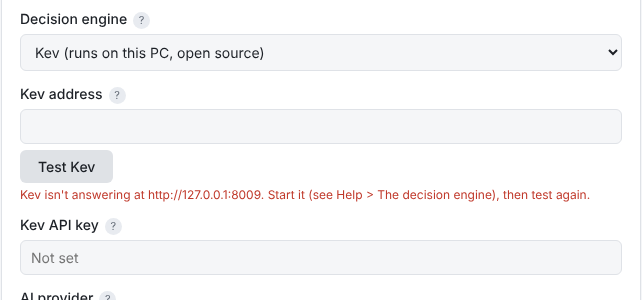
If you started Kev with KEV_API_KEY, enter the same key under Kev API key. Keep Kev running while Relay works. If it stops, Relay says so on each email it couldn't sort.
Kev on a computer outside your network counts as the cloud, so Relay hides private details before sending, as it does for Jev.