Get started
Getting started
Relay is a small AI team for your inbox. It reads your business email, works out what each email needs, does the work in your tools and drafts the reply. Nothing is sent until you approve it.
What you need
- A Windows 10 or 11 PC that stays on while Relay works.
- A mailbox for Relay: Microsoft 365, Gmail, Google Workspace or another IMAP account. A shared mailbox like
hello@yourcompany.comworks best. - An AI: a key from a provider such as Claude, OpenAI or Gemini, or a model on your own PC. See Get an AI key.
1. Install Relay
Download Relay from the download page and run the installer. You don't need admin rights. See Install Relay.
2. Follow the setup wizard
The first time Relay opens, a short wizard walks you through setup. It takes about five minutes, and you can skip any step and finish it later.
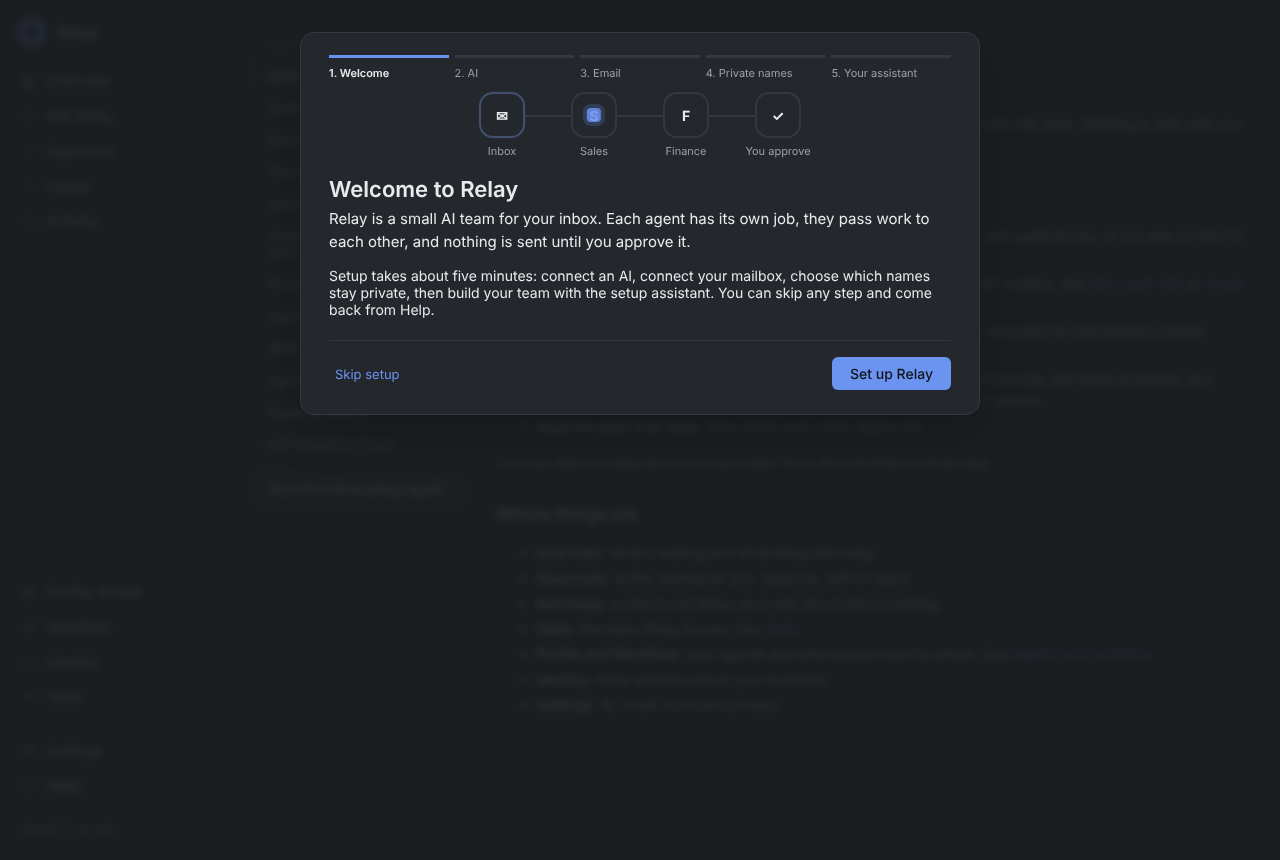
- Plan. Your 30-day free trial starts with everything switched on. If you've bought Relay, paste your licence key from your account page. See Licence and plans.
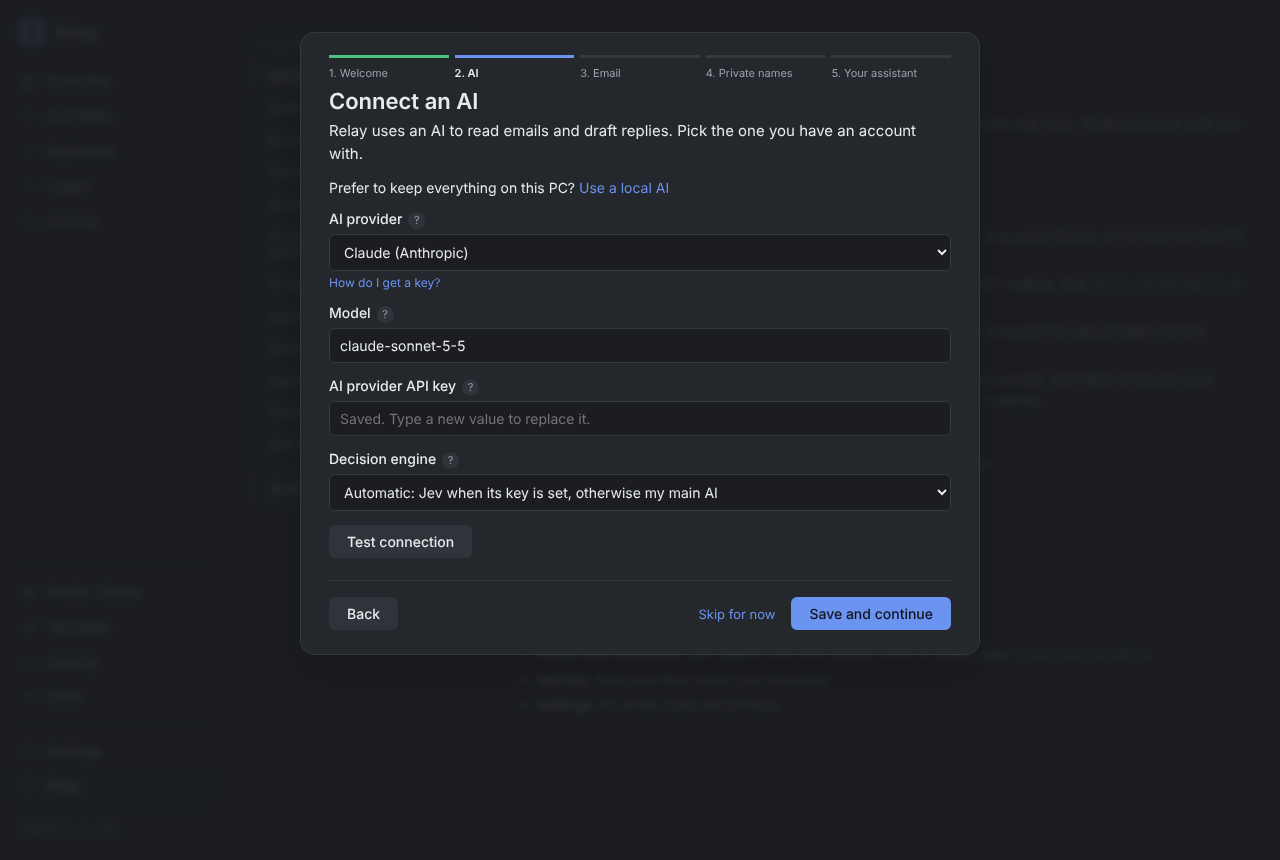
- AI. Pick your provider, paste the key, type the model name and press Test connection. Each choice has a How do I get a key? link. Prefer to keep everything on your PC? Choose Use a local AI.
- Email. Connect Microsoft 365, Gmail or another mailbox. See Connect Microsoft 365 or Connect Gmail and other mailboxes.
- Private names. List your clients and staff. Relay swaps these names for placeholders before anything reaches the AI. Do this before you share any files.
- Your assistant. Ask Relay, the setup chat, takes over: tell it about your business and it proposes your agents and skills one card at a time. See Ask Relay.
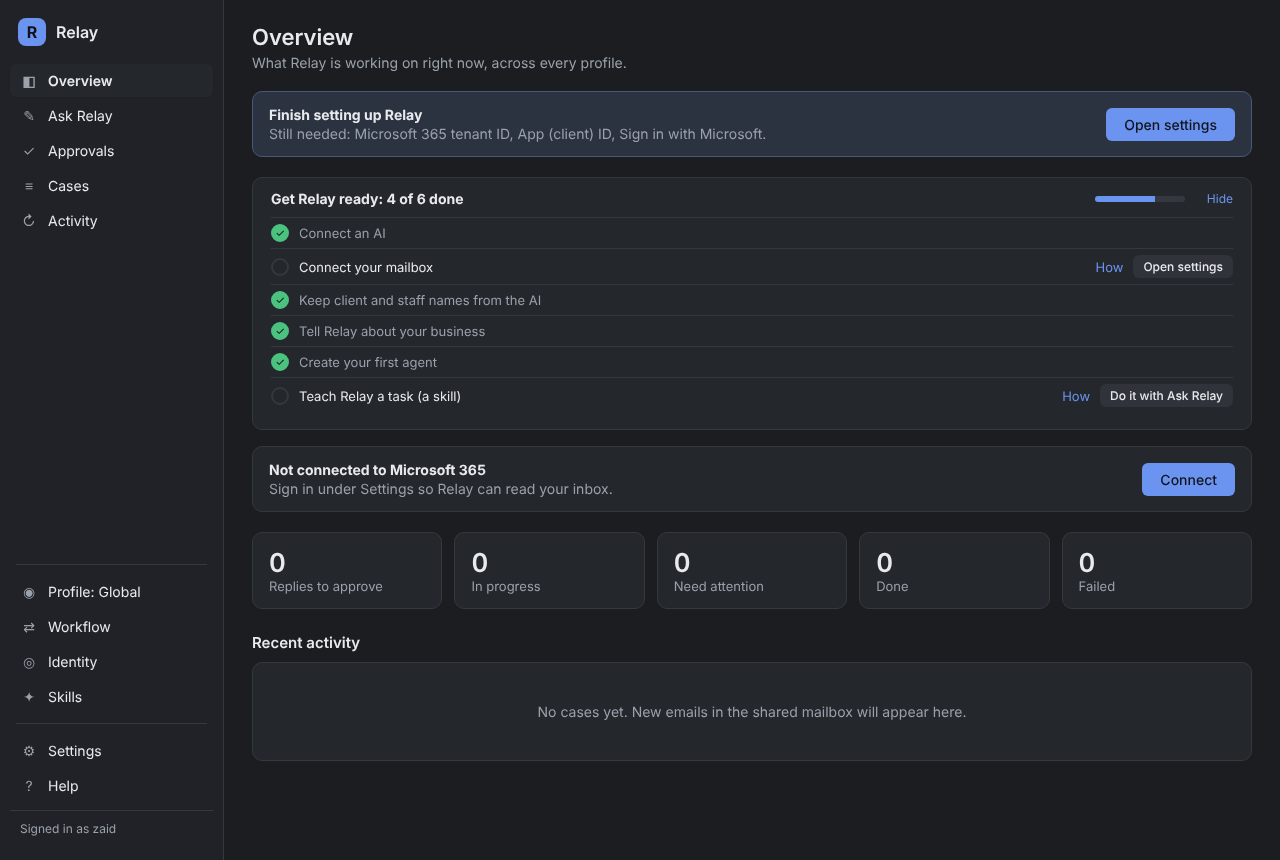
3. Finish the checklist
Anything you skipped stays on the Overview screen as a checklist ("4 of 6 done"), with a button for each step.
4. Approve your first reply
Send a test email to the mailbox, such as a question about your prices. Within a minute or two Relay's draft appears under Approvals. Read it, edit it if you like, and press Approve reply. That's the only way anything leaves.
Where things are
- Overview: what's waiting and what Relay did today.
- Ask Relay: a chat for setting Relay up, or asking why it did something.
- Approvals: drafts waiting for you.
- Cases and Activity: everything Relay has handled.
- Agent and Team: your agents, what each is doing, and who passes work to whom.
- Identity: facts and files about your business.
- Skills: the tasks Relay knows.
- Connections: the systems Relay is logged in to, such as your CRM or accounting system. See Connect any system with an API.
- Settings: AI, email, privacy and your licence.
- Help: these guides, built into the app, plus a short guided tour of each screen.