Connect
Set up Power BI reports
Relay builds Power BI reports by writing a Power BI Project (PBIP): plain files that hold the data model and the report pages. It then opens the project in Power BI Desktop on the PC where Relay runs. No Power BI licence, workspace or tenant setting is needed for this.
Set it up
- Install Power BI Desktop on the PC where Relay runs (from the Microsoft Store or the download page).
- If your version still lists it as a preview, turn on Power BI Project (.pbip) save option under File > Options and settings > Options > Preview features, and restart Power BI Desktop.
- In Relay, open Connections > + Add a connection > Power BI on this PC, set Power BI reports to On and save. Reports are saved in
Documents\Relay reportsunless you choose another folder.
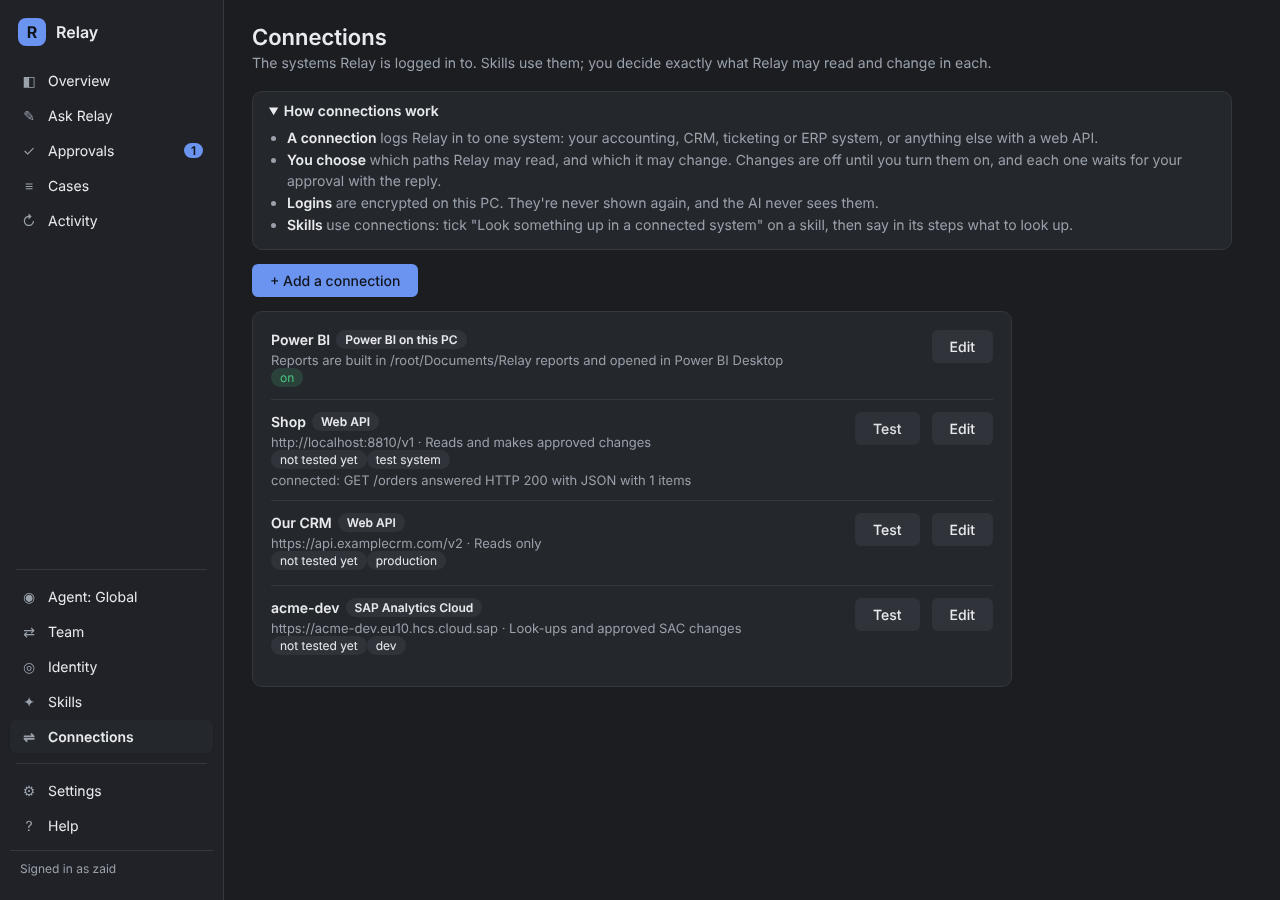
The first time you turn it on, Relay adds the Report from attached data starter skill. You can change it like any other skill.
What Relay can build
- Visuals: table, bar, column, line, pie and card (a single number), up to 6 per report.
- Any CSV with a header row. Relay profiles the columns in code: types, row count, date range and obvious problems.
- If someone asks for something Relay can't build yet, the reply says so politely and offers what it did build.
How the numbers are kept honest
- The AI decides what to show from the request, the column names and a few masked sample rows. It never sees the whole file.
- Code builds the report from tested templates, then reads it back to check that every field exists and that the row count and totals match the original file.
- Findings like "North grew 20%" are calculated in code, not written by the AI.
What gets sent back
When you approve, the reply includes a chart image Relay renders itself and the zipped project. The data is stored inside the project, so it opens with data on any PC with Power BI Desktop.
Coming soon: publishing to the Power BI service so the reply can include a link instead of a file.