Tutorials
Tutorial: your first Power BI report
In this tutorial you email Relay a sales export and get back a Power BI report with findings, after you approve it.
Before you start
- Power BI is set up on the PC where Relay runs.
- You have a CSV with a header row: for example date, region, product, units and revenue. A few thousand rows is plenty.
1. Send the request
From another mailbox, email Relay's mailbox with the CSV attached:
Hi Relay, attached is our Q3 sales export. Can you build a Power BI report with a table of revenue by region and a monthly trend chart, and send it back?
2. Watch Relay work
Within a couple of minutes, the case appears. Relay:
- opens the CSV and profiles it in code: columns, types, rows and date range;
- turns your request into a report plan, using the column names and a few masked sample rows;
- writes the Power BI project and opens it in Power BI Desktop on the PC;
- checks that every field exists and that the row count and totals match the file;
- calculates two or three findings in code, such as which region grew most.
3. Review the approval
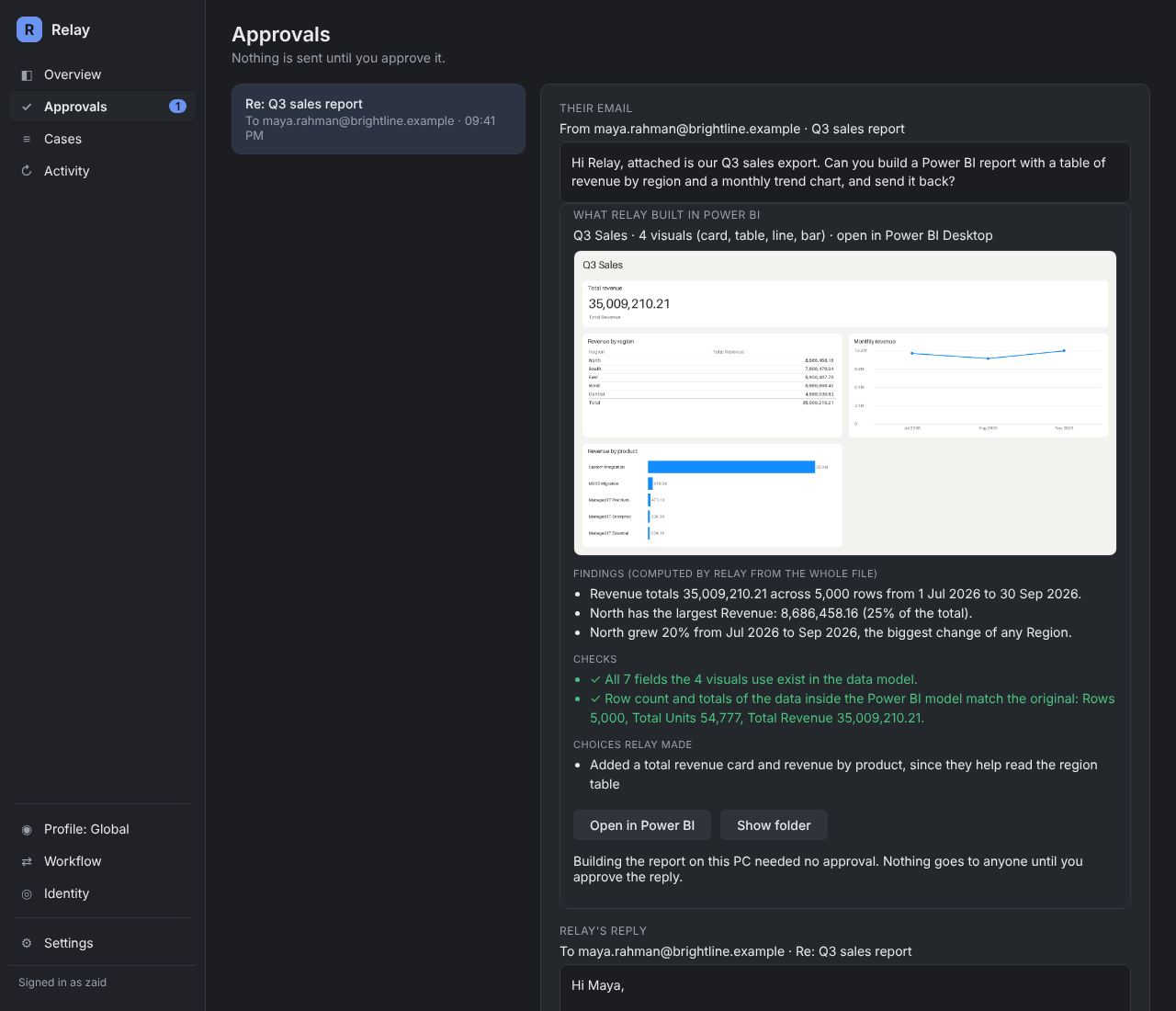
Check the picture of the report, the findings, the checks (they should be green) and choices Relay made, such as adding a total revenue card. Click Open in Power BI to explore it, or Show folder to see the files.
4. Approve
Edit the reply if you like, then click Approve. Relay replies in the same thread with the chart image and the zipped project, which opens with its data on any PC with Power BI Desktop.
Next: make it weekly in Tutorial: a weekly report that watches your numbers.